Run financial reports
Open Reports in the sidebar and select a report — Overview, Profit & Loss, Balance Sheet, Cash Flow, General Ledger, or Trial Balance. Choose All Posted or Approved Only, then, on Profit & Loss, Balance Sheet, Cash Flow, or Trial Balance, select Download CSV to export.
View and export your financial reports. A report renders as soon as you open it — there's no separate "run" step.
Steps
- Open Reports in the sidebar.
- Select a report: Overview, Profit & Loss, Balance Sheet, Cash Flow, General Ledger, or Trial Balance.
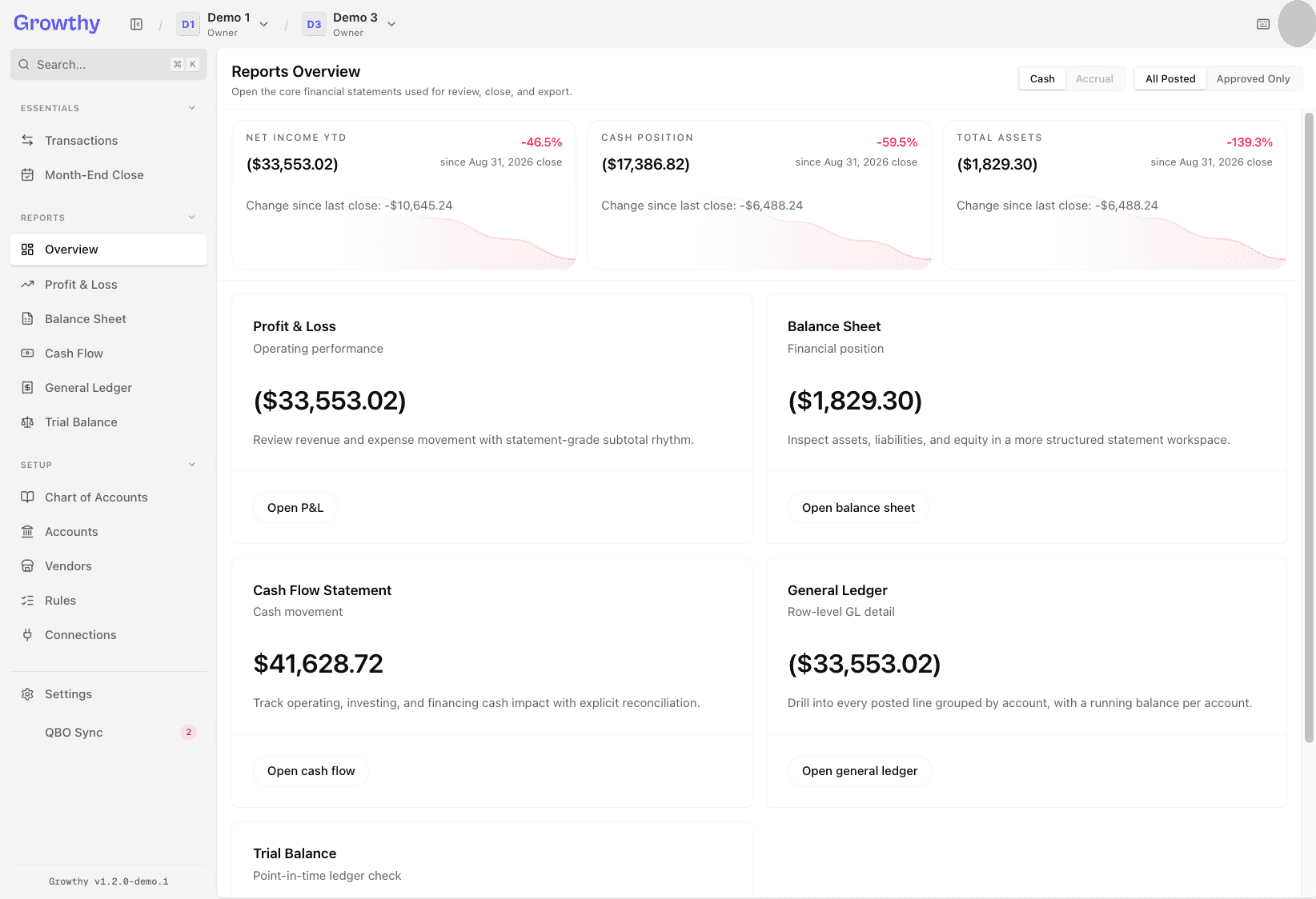
- Choose the filter: All Posted to include all posted entries (unreviewed, approved, and flagged), or Approved Only to include only approved entries. This filter is available on every report.
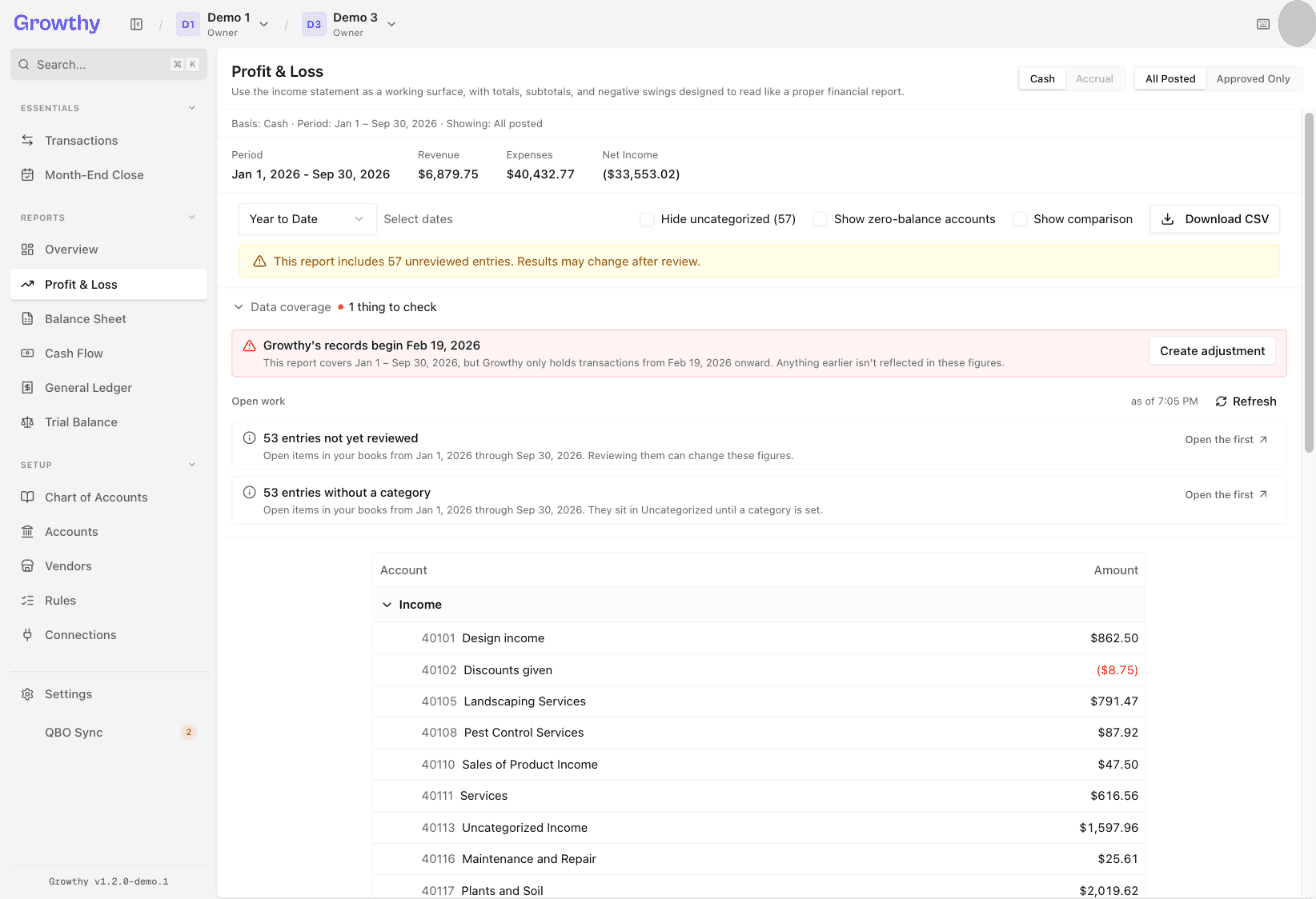
- On Profit & Loss, Balance Sheet, Cash Flow, or Trial Balance, select Download CSV to export. Overview and General Ledger don't have an export option.
On Profit & Loss and Balance Sheet, the Download CSV button opens a menu with CSV — current period and CSV — with comparison. On Cash Flow and Trial Balance, Download CSV exports directly.
Was this helpful?